Here’s a little more information…
The macOS native keyboard shortcuts and macros detailed above will enable efficient spaces navigation and window movement. Here’s a summary:
Space Navigation
  Move left a space                ⌃←
  Move right a space               ⌃→
  Switch to Desktop 1              ⌃1
  Switch to Desktop 2              ⌃2
  Switch to Desktop 3              ⌃3
  Switch to Desktop 4              ⌃4
  Switch to Desktop 5              ⌃5
  Switch to Desktop 6              ⌃6
  Switch to Desktop 7              ⌃7
  Switch to Desktop 8              ⌃8
  Switch to Desktop 9              ⌃9
  Return to Previous Space         ⌃Return
Navigation beyond Space 9 can be done two ways:
-
⌃9, followed by the required number of ⌃→
-
By opening or activating an application that has been assigned to the space. (This method can be used for any of the 15 spaces.)
Window Movement
  Move window left a space         ⌃⌥←
  Move window right a space        ⌃⌥→
  Move window to Current Space     ⌃⌥0
  Move window to Space 1           ⌃⌥1
  Move window to Space 2           ⌃⌥2
  Move window to Space 3           ⌃⌥3
  Move window to Space 4           ⌃⌥4
  Move window to Space 5           ⌃⌥5
  Move window to Space 6           ⌃⌥6
  Move window to Space 7           ⌃⌥7
  Move window to Space 8           ⌃⌥8
  Move window to Space 9           ⌃⌥9
  Move window to Space 10          ⌃⌥A
  Move window to Space 11          ⌃⌥B
  Move window to Space 12          ⌃⌥C
  Move window to Space 13          ⌃⌥D
  Move window to Space 14          ⌃⌥E
  Move window to Space 15          ⌃⌥F
  Move window to Previous Space    ⌃⌥Return
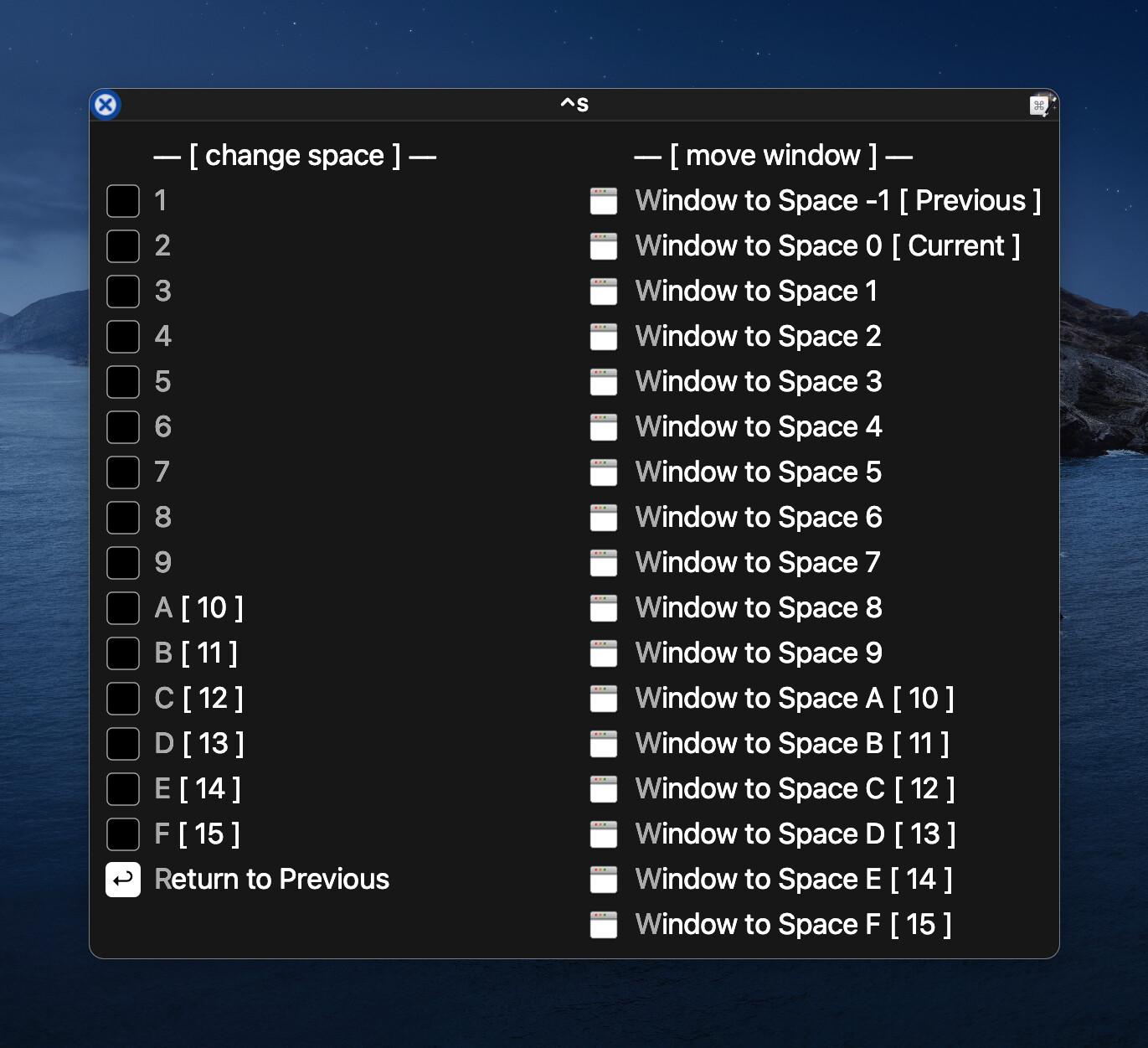
Alternatively, the above can be controlled using one Keyboard Maestro Conflict Palette that is triggered using ⌃S.