Okay. I did have a post from last December all about this, but I wasn’t happy with it at the time and it is still sat in my drafts folder. It went in depth on more than just this aspect as it covered some workarounds too, but let’s see if I can at least get the gist of the virtual layout and button IDs across.
Virtual Locations
As an example, I’ve set up a separate profile on my Stream Deck to illustrate how this works. You can apply this across profiles, but it also applies across folders - Keyboard Maestro is almost tesseract-esque in the way you can dimension various parts of it.
On the profile page I have three entries:
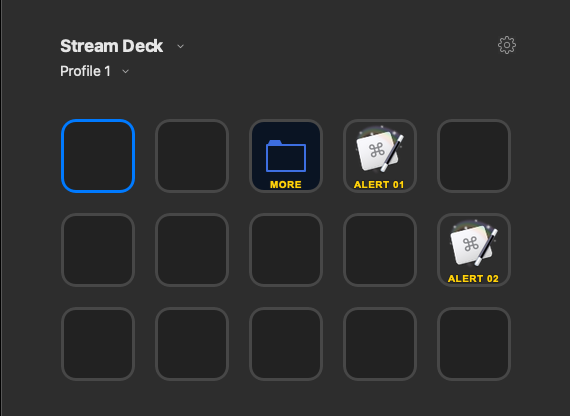
A folder and two links to two Keyboard Maestro macros. More on those shortly.
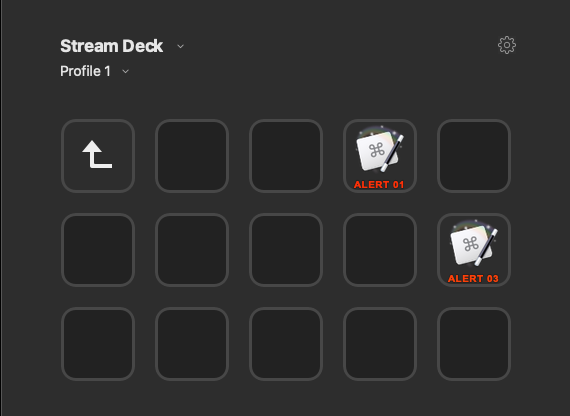
Under the folder, there are two more buttons. One has the same name as the Botton on the previous screen in the same position. The second one however does not.
On the root profile screen, the ALERT 01 button is set-up like this.
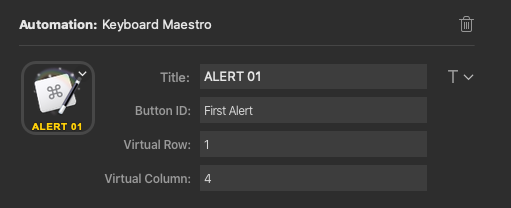
I’ve given the button a name, it can be anything I like. I’ve specified the virtual row and column coordinates as the defaults it gives. So row 1 because it is on the top row and column 4 because it is in the fourth column.
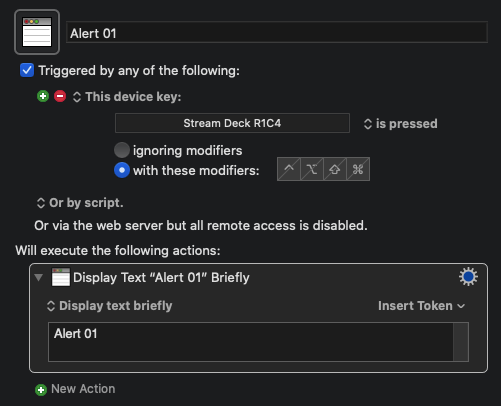
The macro I linked up links to this - note the device key references the virtual row and column:
Now ALERT 02 is set-up in a similar manner.
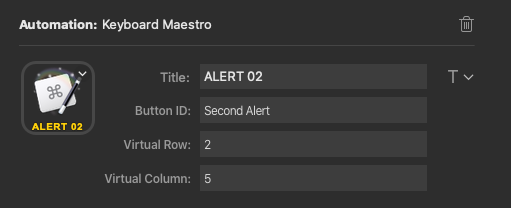
With a similar macro; again, note the device key.
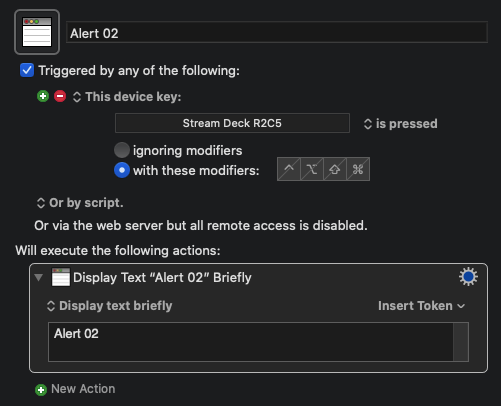
When ALERT 01 is pressed I get a notification reading “Alert 01”. When ALERT 02 is pressed I get a notification reading “Alert 02”. Hopefully, that’s all straight forward and fairly familiar.
Now let’s look at the buttons in the folder.
The first one named ALERT 01 I’ve put in the same place as the previous ALERT 01, and I’ve set-it up almost identically (just a different ID). The physical location is irrelevant as that virtual row and column reference is what we’re using for linking, and it really is virtual. But, here’s how I defined the button.
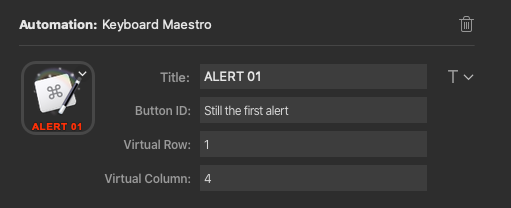
When selected, this will display a notification reading “Alert 01” as it triggers exactly the same Keyboard Maestro macro as the other ALERT 01 button.
The ALERT 03 button is set-up differently.
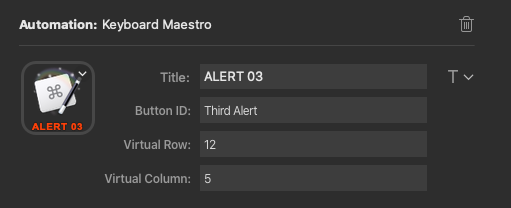
The button is on physical row 2, column 5, but I’ve added an arbitrary ten rows to that and placed it on virtual row 12.
Then when I have a Keyboard Maestro macro set-up like this:
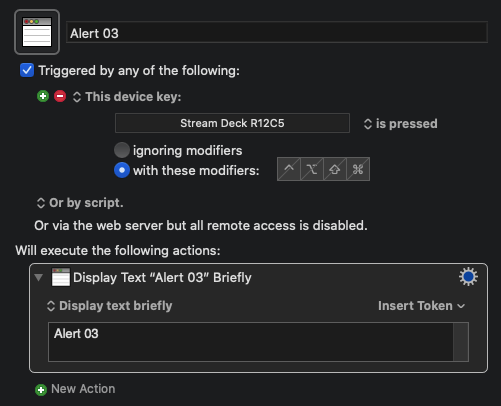
When I press ALERT 03 I get a notification “Alert 03” even though this button is in the same physical row and column location as the button that earlier triggered a notification of “Alert 02”.
My advice is to keep the virtual rows and columns related to the physical rows and columns if you are going to use them. It isn’t too difficult with a few rules and calculations to keep things in line for however you want to use it across profiles and folders … it just that you can have folders in folders in folders in …; so just make sure you have a plan from the start.
Button ID
I’m only about 20 minutes into this episode, so I don’t know exactly what is discussed yet, but this official plugin I would say is much more difficult to use than the KMlink plugin or even just using a macro’s URL trigger. The advantage the official plugin does have is that it allows Keyboard Maestro to use the button ID to dynamically update the button. That’s the ID, not the virtual location, and that’s where the button ID comes into play.
For example, let’s say I have three buttons set-up as follows:
Button A:
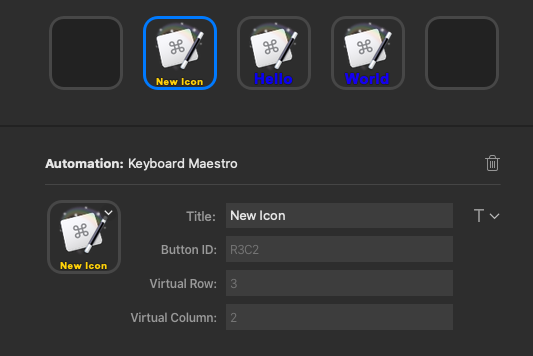
Button B:
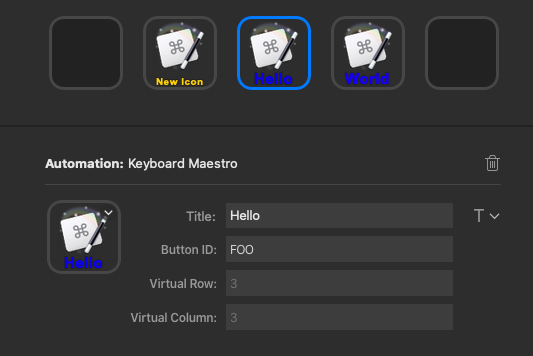
Button C:
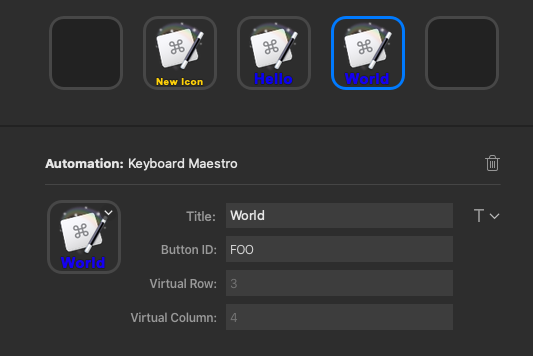
If I then create a Keyboard Maestro macro like this:
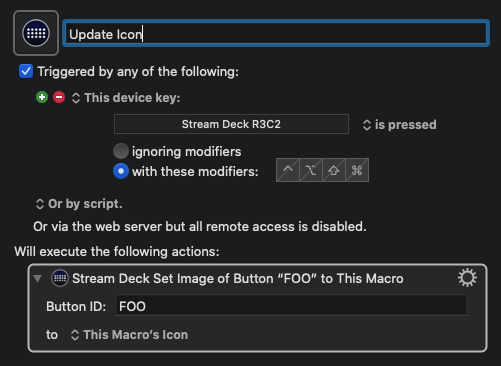
When I press button A, it will update the button with a button ID of “FOO” to have the stream deck icon that the macro has. But note that both buttons B and C have that ID. IDs, just like virtual locations do not have to be unique. Pressing the button will actually update the icon on both buttons.

The only pain is that I never found a way through Keyboard Maestro to efficiently update buttons periodically. i.e. only when the button is available on the deck. Also updating it when you switch into a folder or profile requires some tacky workarounds to force things which is a little disappointing. You can do this sort of thing through writing your own plugin (BarRaider does it on his Spotify plugin for example).
I hope that makes things clearer. Any questions, just let me know.